

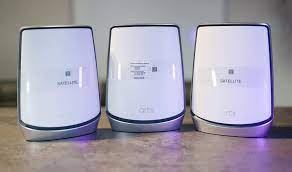
Looking for a seamless Orbi router login and setup process? Dive into this comprehensive guide that covers Orbi router setup via the Orbi app, WPS setup, manual configuration, factory reset, firmware updates, and troubleshooting tips for common issues.
Welcome to the ultimate guide for Orbi router login and setup. Whether you’re a techsavvy enthusiast or a newbie to networking, this article will walk you through the entire process, offering expert insights, troubleshooting tips, and a lot more. Let’s get started!
Orbi Router Setup via Orbi App
Setting up your Orbi router via the Orbi app is a breeze. With userfriendly steps and a clean interface, you can have your network up and running in no time. Here’s how:
- Download the Orbi App: Start by downloading the Orbi app on your mobile device.
- Create an Account: Open the app, create an account, or log in if you already have one.
- Follow the Wizard: The app will guide you through the setup process. Simply follow the onscreen instructions to configure your Orbi router.
- Personalize Your Network: Customize your network settings, including WiFi name and password.
- Complete Setup: Once you’ve configured your settings, your Orbi router is ready to use.
Orbi Router Setup via WPS
The WiFi Protected Setup (WPS) method is another way to connect devices to your Orbi network. This is especially useful for devices without screens. Here’s how to set it up:
- Press the WPS Button: Locate the WPS button on your Orbi router. Press it.
- Activate WPS on Your Device: Within two minutes, activate the WPS setup on your device.
- Connection Established: Your device will automatically connect to the Orbi network without the need for a password.
Orbi Router setup via Manually
For those who prefer manual control over their network settings, manual configuration is the way to go. Follow these steps:
- Access the Router Dashboard: Open a web browser and enter the Orbi router’s IP address (usually, it’s 192.168.1.1) in the address bar.
- Login: Enter your Orbi username and password.
- Navigate Settings: Explore the settings menu to configure your network, security, and other options.
- Save Changes: Don’t forget to save your changes before leaving the dashboard.
Orbi: Factory Reset
If you encounter severe issues or need to start afresh, performing a factory reset can help. Here’s what to do:
- Locate the Reset Button: Find the reset button on your Orbi router; it’s typically a small, recessed button.
- Press and Hold: Using a paperclip or similar tool, press and hold the reset button for about 10 seconds.
- Wait for Reboot: The router will reboot, and all settings will be restored to their default values.
Orbi router: Firmware Update
Keeping your Orbi router’s firmware uptodate is essential for security and performance.
- Access the Dashboard: Log in to the router dashboard as explained in the manual configuration section.
- Check for Updates: Look for the firmware update option, usually in the advanced settings section.
- Download and Install: If an update is available, download and install it.
- Reboot Router: After the update, reboot your router to apply the changes.
Troubleshooting Tips and Common Issues
Slow Internet: If your internet is sluggish, try rebooting your router and modem.
No Internet Connection: Ensure all cables are securely connected, and contact your ISP if the issue persists.
Device Connection Problems: Check for firmware updates on your devices and reboot them if necessary.
Orbi App Issues: Update the app to the latest version or reinstall it.
FAQs
Q: How do I change my Orbi WiFi name and password?
A: Log in to the router dashboard and navigate to the WiFi settings to change your network name and password.
Q: Can I use the Orbi app on multiple devices?
A: Yes, you can use the Orbi app on multiple devices to manage your network.
Q: What should I do if I forget my Orbi router login credentials?
A: Perform a factory reset as described earlier, but be prepared to reconfigure your network settings.
Q: Are firmware updates automatic?
A: Firmware updates can be set to automatic, but it’s recommended to check for updates manually to ensure you’re always running the latest version.
Q: My Orbi router is not reaching certain areas of my home. What can I do?
A: Consider adding Orbi satellite devices to extend your network’s coverage to those hardtoreach areas.
Q: How can I contact Orbi customer support for more assistance?
A: Visit the Orbi website or consult the user manual for customer support information.
In this comprehensive guide, we’ve covered every aspect of Orbi router login and setup, from using the Orbi app to manual configuration, troubleshooting tips, and more. With this information at your fingertips, you’re wellequipped to make the most of your Orbi router.